PechaForge: Create Traditional Tibetan Pecha Manuscripts in Your Browser
Tibetan pecha (དཔེ་ཆ།) is one of the world’s most distinctive book formats — long, narrow landscape folios stacked loosely between wooden boards, their layout unchanged for centuries. Until now, recreating that layout digitally required desktop publishing software, custom InDesign templates, or hand-formatting each page. PechaForge changes that.
PechaForge is a free, in-browser tool that lets you paste Tibetan text and instantly generate properly formatted pecha pages, complete with the traditional three-column layout, red vertical rules, folio numbering in Tibetan script, and the yig mgo (༄༅།) opening mark. Export to PDF for print, or export double-sided sheets ready for authentic pecha assembly.
What Is a Pecha?
A pecha (sometimes spelled poti or written དཔེ་ཆ།) is the traditional Tibetan loose-leaf book format. Key characteristics:
- Extreme landscape proportions — roughly 6:1 width-to-height ratio, mimicking the shape of palm-leaf manuscripts that Tibetan books were historically modeled on
- Three-column layout — abbreviated text title or section name in the left margin, the main body text in the center, and a folio (page) number in the right margin
- Red vertical rules — thin red lines separate the three columns, a convention maintained across centuries of Tibetan printing
- Stacked pages — pechas are printed on individual leaves, not bound, and held between decorative wooden covers (shying)
Pechas have been used for religious texts, commentaries, medical treatises, astrological tables, and government documents. The format remains the standard for traditional Tibetan Buddhist canonical texts.
How PechaForge Works
PechaForge is a formatter, not a document store. There is no account, no login, and no server storing your text. Everything runs in your browser.
Step 1 — Paste your text
Open the tool at termafoundry.com/pecha and paste your Tibetan text into the input area. The textarea supports multi-line Tibetan text with standard Unicode encoding (U+0F00–0FFF).
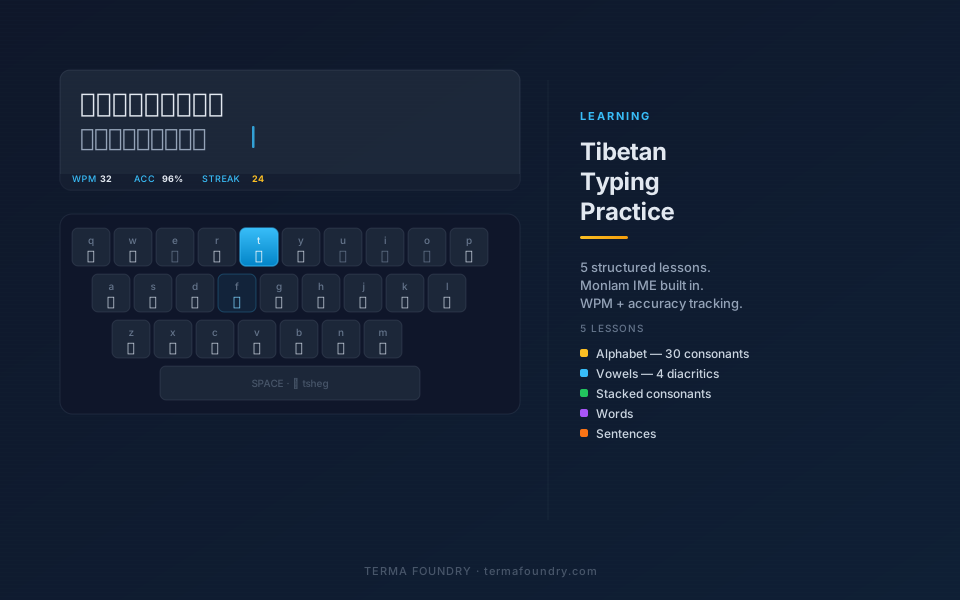
Tibetan IME included. If you need to type directly in the tool, toggle the IME switch. PechaForge includes the Monlam phonetic keyboard layout — type in QWERTY and get Tibetan output in real time. For example, k → ཀ, kh → ཁ, g → ག.
Step 2 — Configure settings
Use the settings toolbar to control:
| Setting | Options |
|---|---|
| Font | 8 Tibetan typefaces (Jomolhari, Noto Serif Tibetan, DDC Uchen, Monlam Bodyig, and more) |
| Theme | Light (parchment), Dark (gold on indigo), Black & White, Maroon |
| Title text | Short label shown in the left column of every page |
| Folio start | Which Tibetan numeral to start page numbering from |
| Lines per page | Control text density (typically 6–8 lines per pecha) |
Step 3 — Generate preview
Click Generate Preview. PechaForge:
- Splits your text at line breaks
- Groups lines into pages based on your lines per page setting
- Renders each page as an authentic
.tr-pechalayout with left title column, center body, and right folio number - Inserts the yig mgo mark (༄༅།) at the start of the first page
- Converts all folio numbers to Tibetan numerals (e.g., ༡, ༢, ༣)
The preview updates instantly. You can scroll through all rendered pecha pages before exporting.
Step 4 — Export
PechaForge offers two export modes:
Standard PDF Export Prints 3 pecha pages per physical sheet in landscape orientation. Pages are spaced evenly across the sheet. All theme colors are preserved in the PDF — including the parchment background, colored borders, and text colors. The B&W theme outputs a clean black-and-white version suitable for photocopying.
Double-Sided Export (Duplex) For assembling a real pecha, you need both sides of each sheet to align when folded. PechaForge handles the page ordering automatically:
- Front sheets print pages 1, 3, 5 (top to bottom)
- Back sheets print pages 6, 4, 2 (reversed, because landscape long-edge duplex flips vertically)
This ensures that when you print and flip the sheet on its long edge, page 2 lands directly behind page 1, page 4 behind page 3, and so on — correct alignment without manual reordering.
Themes
PechaForge ships with four themes:
Light (Parchment)
The default. Warm cream background (#faf0dc), dark ink text, red borders and column rules. Matches the appearance of traditional Tibetan block-printed texts on unbleached paper.
Dark (Gold on Indigo)
Sacred text style — deep indigo background (#1e1b4b), gold text (#d4a843), amber borders. Traditionally used for texts of special importance, written in gold or silver ink on black-lacquered paper (nag shog).
Black & White
Clean monochrome. White background, black text and borders. Optimized for photocopying and laser printing. Ideal for distributing practice texts or study materials without color printing costs.
Maroon
Deep burgundy background (#2c0a0a), warm cream text (#e8d5b0), gold borders (#c9a84c). Inspired by the color of traditional Tibetan lacquered wooden covers.
Title Page
PechaForge can generate an optional title page. The title page uses the full-width body area (no side columns) with:
- A large rendering of the text title in your chosen font
- A double-line inner rectangle border (four inset layers) as a decorative frame
- The yig mgo mark above the title
To use this feature, fill in the Title field before generating the preview.
Save and Load Projects
PechaForge includes lightweight project persistence:
Auto-draft — Every change to your text or settings is auto-saved to your browser’s localStorage with a 1-second debounce. If you close the tab accidentally, your work is restored when you return to the page.
Save Project — Downloads a .json file containing your text, settings, and configuration. Share this file with collaborators or archive it for future editing.
Load Project — Opens a saved .json file and restores all settings and text exactly as they were.
Supported Fonts
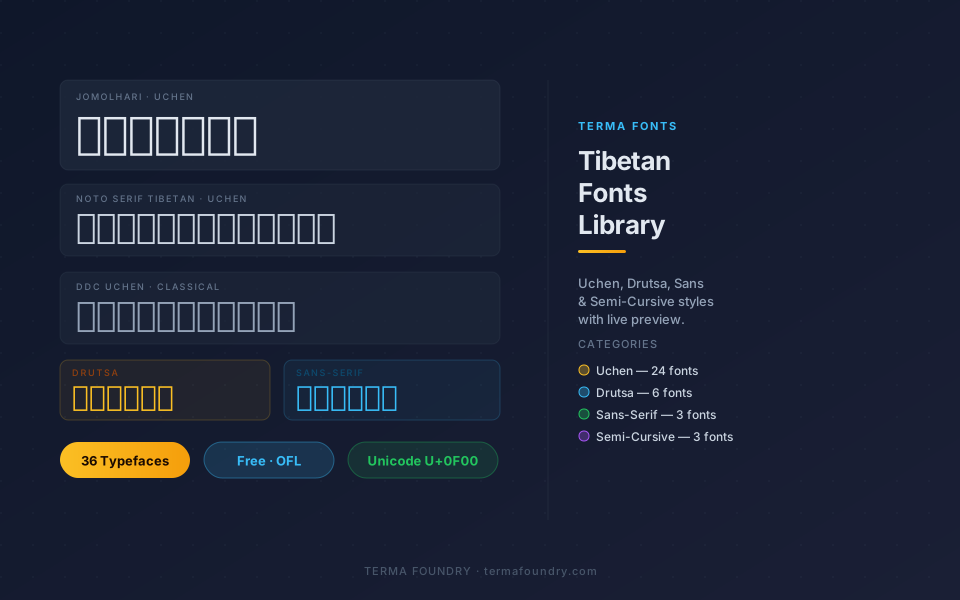
PechaForge includes 36 Tibetan typefaces across six script categories — the same collection as Terma Foundry’s full font library:
Uchen (Formal — 13 fonts) Jomolhari, Noto Serif Tibetan, Tibetan Machine Uni, DDC Uchen, DDC Rinzin, Monlam Bodyig, BabelStone Tibetan, BabelStone Slim, GangJie Uchen, Jamyang Monlam Uchen, Panchen Tsukring, Riwoche Dhodri, Sadri Yigchen
Qomolangma Series (3 fonts) Qomolangma Sarchen, Qomolangma Betsu, Qomolangma Tsutong
Monlam Uni Series (8 fonts) OuChan 1–5, Monlam PayTsik, Monlam Tikrang, Monlam TikTong
Sans-Serif (3 fonts) Noto Sans Tibetan, MiSans Tibetan, Monlam Sans
Drutsa — Cursive (6 fonts) Qomolangma Drutsa, GangJie Drutsa, Khampa Drutsa, Sadri Drutsa, Monlam Dutsa 1, Monlam Dutsa 2
Semi-Cursive (3 fonts) Joyig, Khampa Chuyig, Khampa Bechu
Each font is loaded from WOFF2 files scoped to the Tibetan Unicode block (U+0F00–0FFF) for minimal performance impact. Fonts are organized into labelled option groups in the font selector dropdown.
Technical Notes
PechaForge is built with:
- Vanilla JavaScript — no frameworks, no npm dependencies
- termaUI CSS — Terma Foundry’s utility CSS framework provides the
.tr-pechalayout classes window.print()API — standard browser print dialog handles PDF export and color renderinglocalStorage— auto-draft persistence without a server
The pecha layout is implemented using CSS Grid with three columns (9% 1fr 9%), red right borders on the title and body columns, and print-color-adjust: exact to force background graphics into PDF output.
Frequently Asked Questions
Is PechaForge free? Yes. PechaForge is completely free to use with no account required.
Does my text leave my browser? No. All text processing and rendering happens entirely in your browser. Nothing is sent to any server.
Can I use PechaForge for Wylie transliteration or English text? PechaForge is designed for Tibetan Unicode text. Latin characters will render in the pecha layout but will use the Latin fallback font rather than a Tibetan typeface.
What is the correct Unicode for Tibetan text? Tibetan Unicode occupies the range U+0F00 to U+0FFF. Standard Tibetan encoding produced by software like Monlam Keyboard, Keyman, or macOS’s built-in Tibetan input method is compatible with PechaForge.
How many pages can PechaForge handle? There is no hard limit. Very long texts may take a moment to render. For texts over several hundred pages, generating in sections is recommended.
Can I customize the red border color?
Not through the UI currently. The pecha layout CSS uses #b91c1c for the standard theme. Developers can override this via browser DevTools or by forking the project.
What paper size should I use for printing?
Standard A4 or US Letter in landscape orientation works well. PechaForge’s @media print CSS is configured for landscape with three pecha pages per sheet.
Why We Built PechaForge
The pecha format carries centuries of intellectual and spiritual heritage. Monks, scholars, and practitioners around the world still use physical pechas for liturgical practice, study, and preservation. But creating formatted pecha pages digitally has historically required either expensive software or deep desktop publishing knowledge.
PechaForge makes it accessible to anyone — a monk in a monastery, a Tibetan language teacher preparing study materials, a researcher creating a facsimile edition, or a designer producing a commemorative text. No installation, no cost, no learning curve beyond the settings toolbar.
The tool is part of Terma Foundry’s broader mission: building open digital infrastructure for the Tibetan language and its literary traditions.
Related Articles
- Tibetan Fonts Library: 36 Free Web Fonts for the Tibetan Script — The full font library that powers PechaForge’s font selector
- termaUI: A Utility CSS Framework for Tibetan Script Web Design — The CSS framework behind the
.tr-pechalayout classes - Learn to Type Tibetan: Free Online Practice Tool — Type the text you’ll format in PechaForge
PechaForge is available at termafoundry.com/pecha. All source code is part of the Terma Foundry project.